Showing posts with label UI. Show all posts

Wednesday, May 23, 2018

Design Better Forms

Common mistakes designers make and how to fix them


Whether it is a signup flow, a multi-view stepper, or a monotonous data entry interface, forms are one of the most important components of digital product design. This article focuses on the common dos and don’ts of form design. Keep in mind that these are general guideline and there are exceptions to every rule.

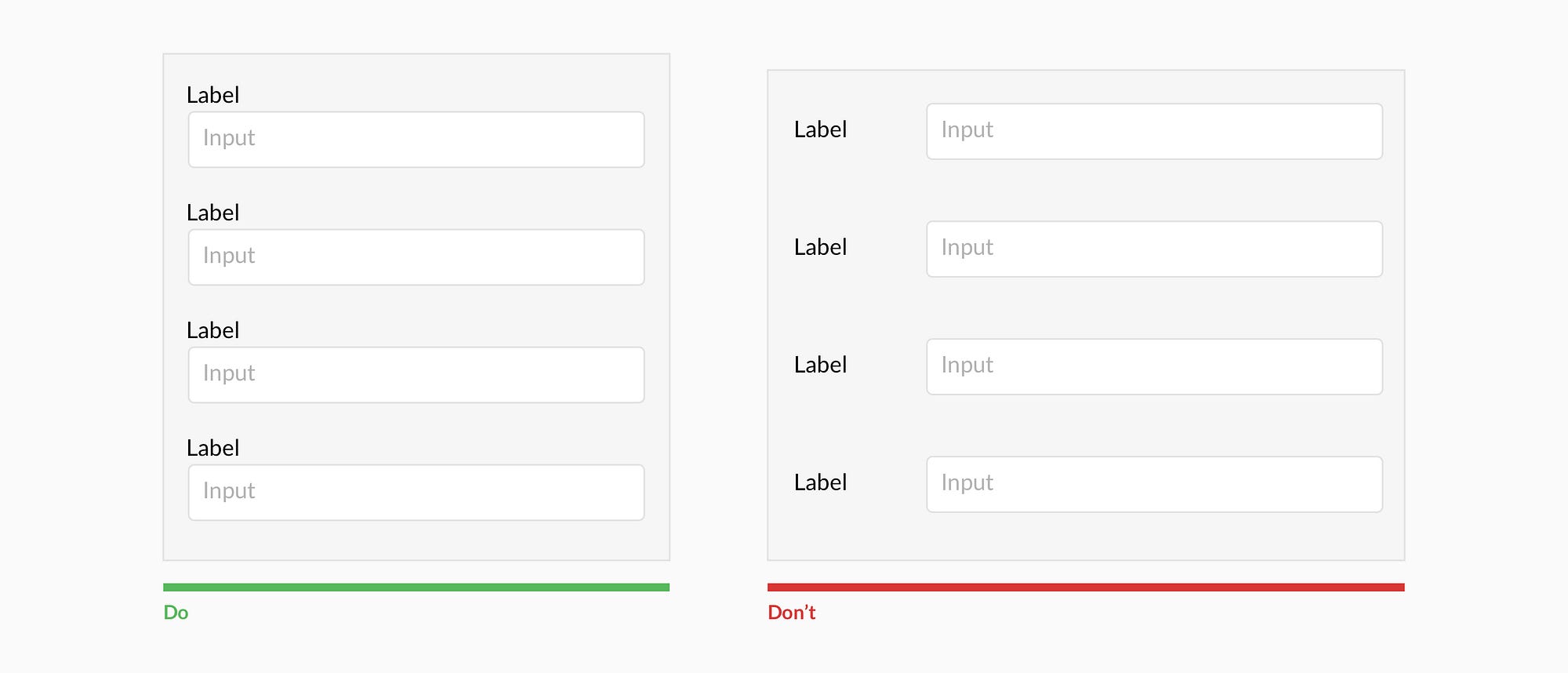
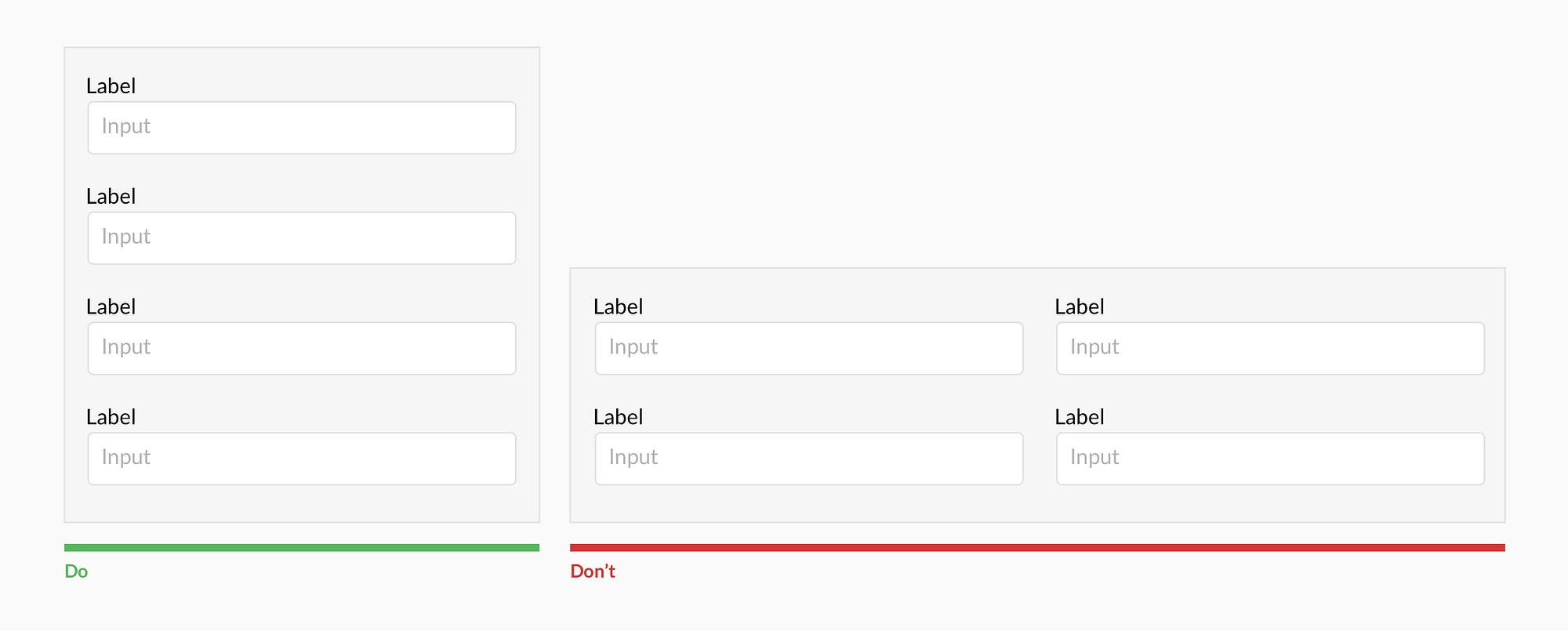
Forms should be one column


Multiple columns disrupt a users vertical momentum.


Top align labels


Users complete top aligned labeled forms at a much higher rate than left aligned labels. Top aligned labels also translate well on mobile. However, consider using left aligned labels for large data-set entry with variable optionality because they are easier to scan together, they reduce height, and prompt more consideration than top aligned labels.


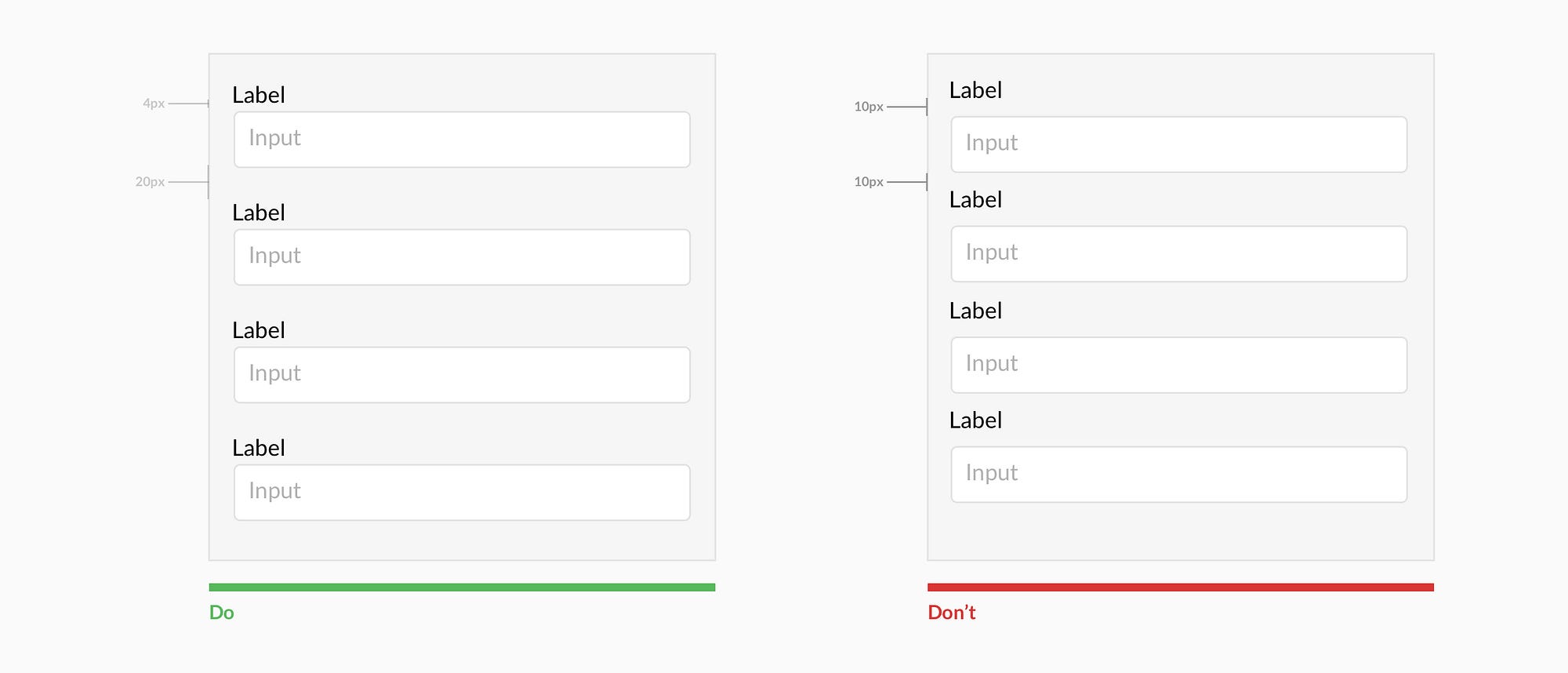
Group labels with their inputs


Present the label and input close together, and make sure there is enough height between the fields so users don’t get confused.

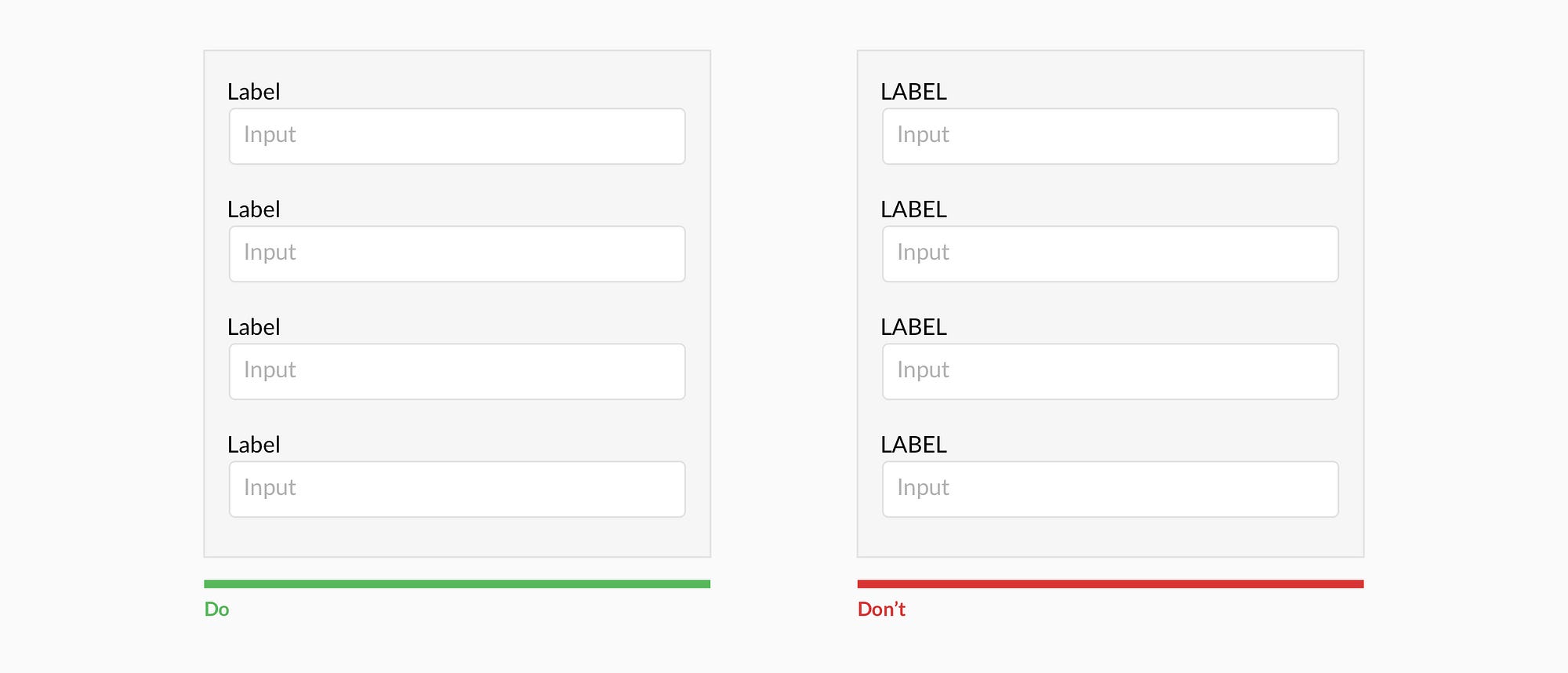
Avoid all caps


All caps is more difficult to read and scan.


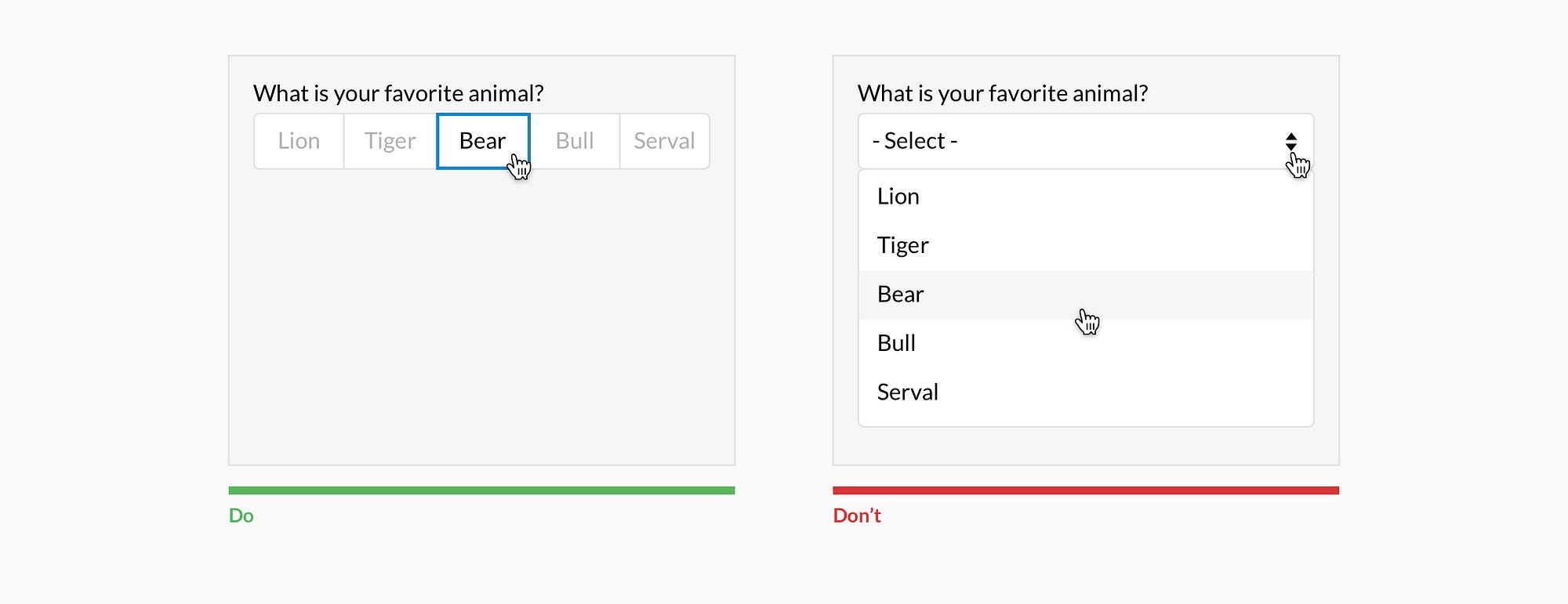
Show all selection options if under 6


Placing options in a selector drop-down requires two clicks, and hides the options. Use an input selector if there are over 5 options. Incorporate contextual search within the drop-down if there are over 25 options.


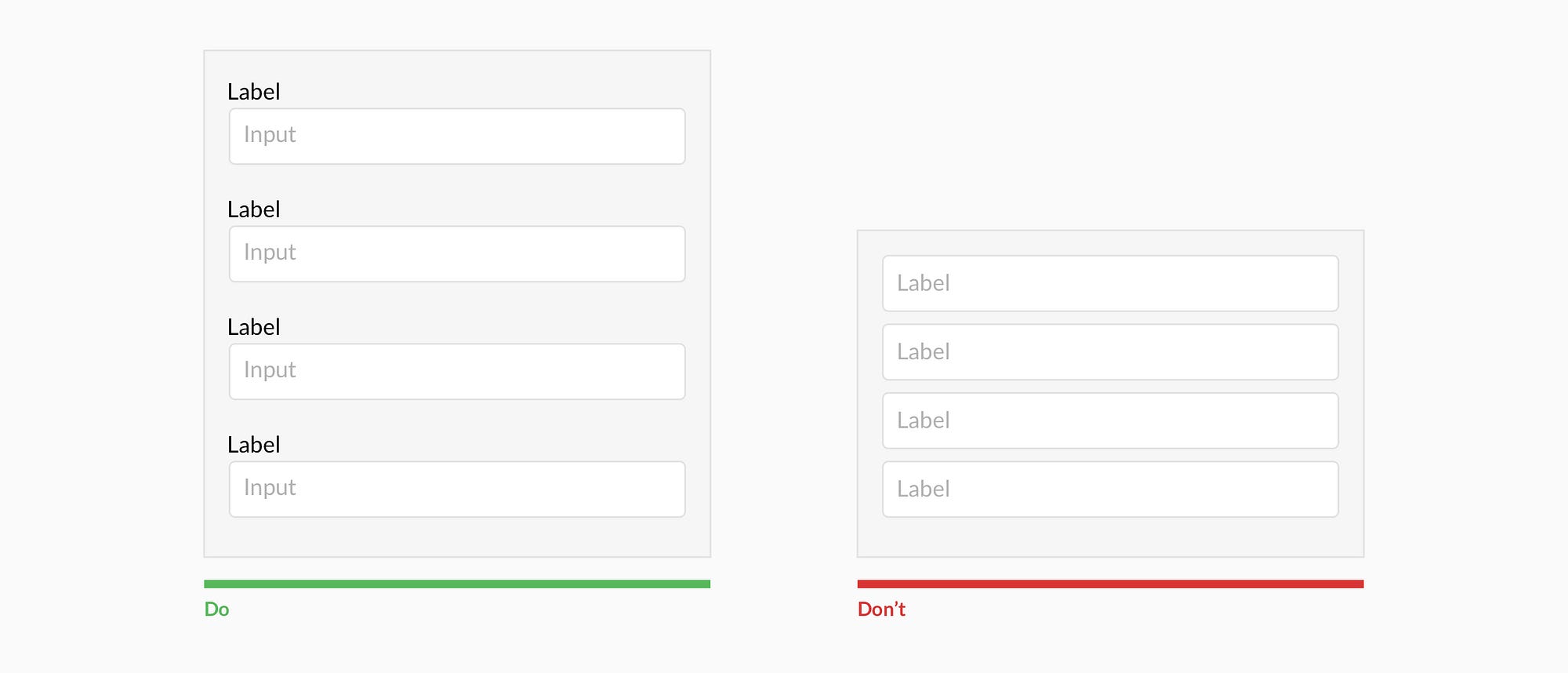
Resist using placeholder text as labels

It is tempting to optimize space by using placeholder text as labels. This causes many usability issues that have been summarized by Katie Sherwin of Nielsen Norman Group.


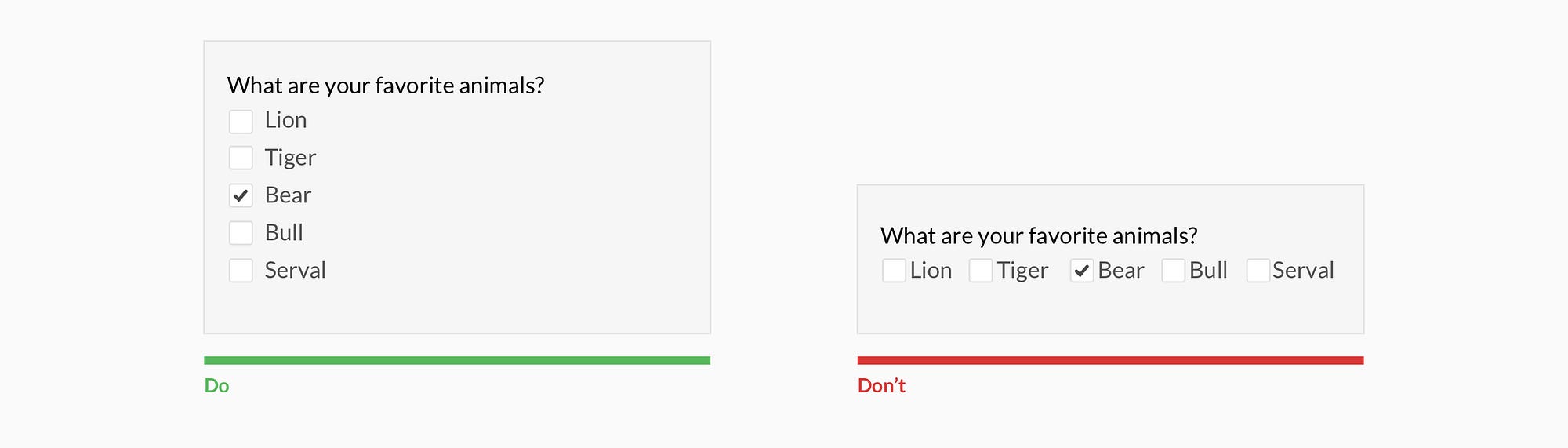
Place checkboxes (and radios) underneath each other for scannability


Placing checkboxes underneath each other allows easy scanning.


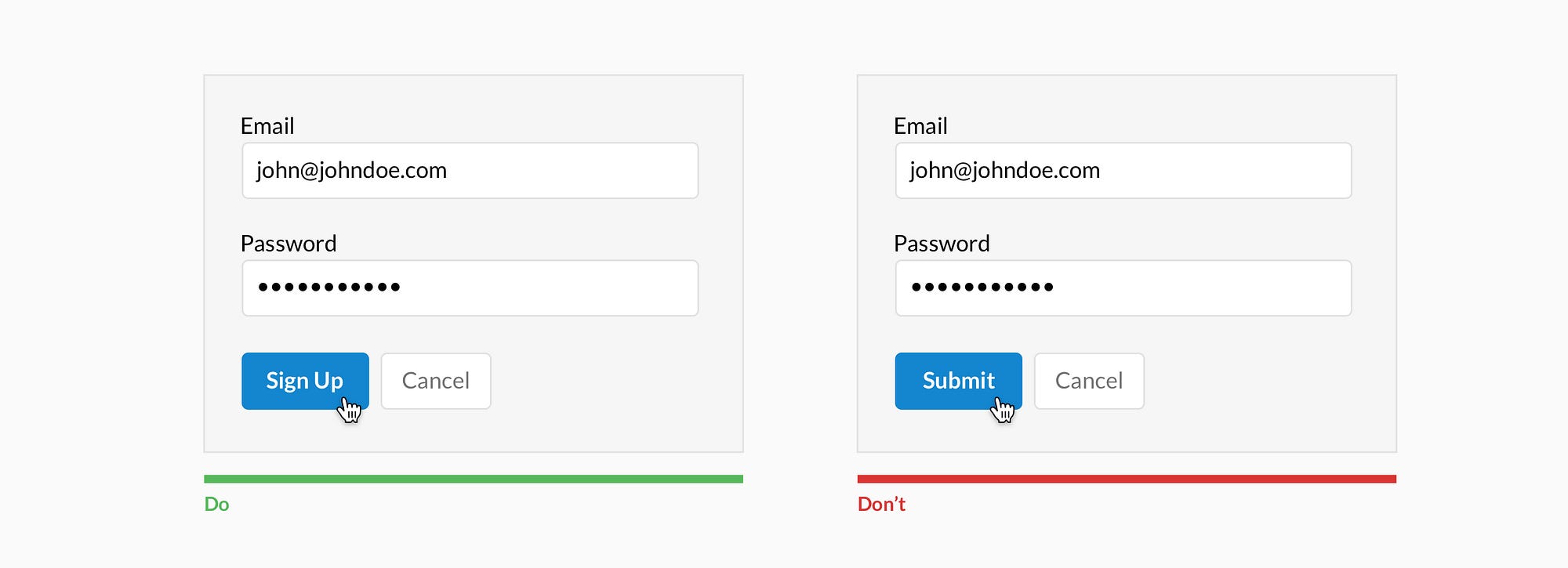
Make CTAs descriptive


A call to action should state the intent.


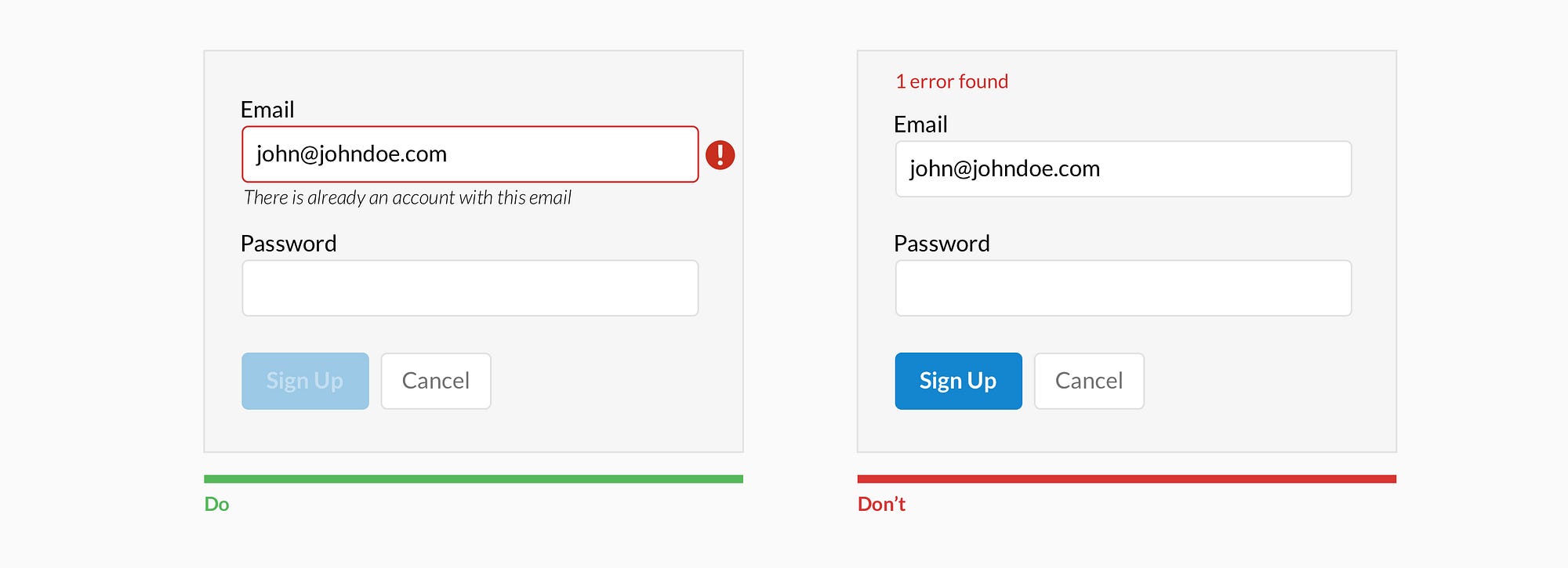
Specify errors inline


Show the user where the error occurred and provide a reason.


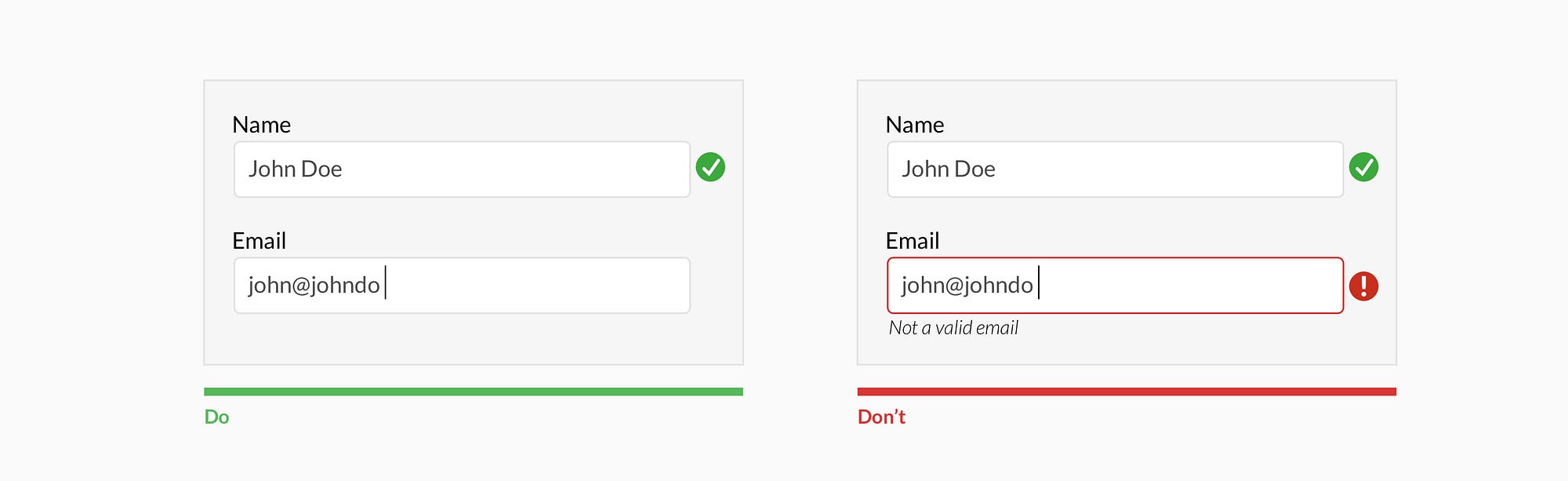
Use inline validation after the user fills out the field (unless it helps them while in the process)


Don’t use inline validation while the user is typing — unless it helps them — like in the case of creating a password, username, or message with a character count.


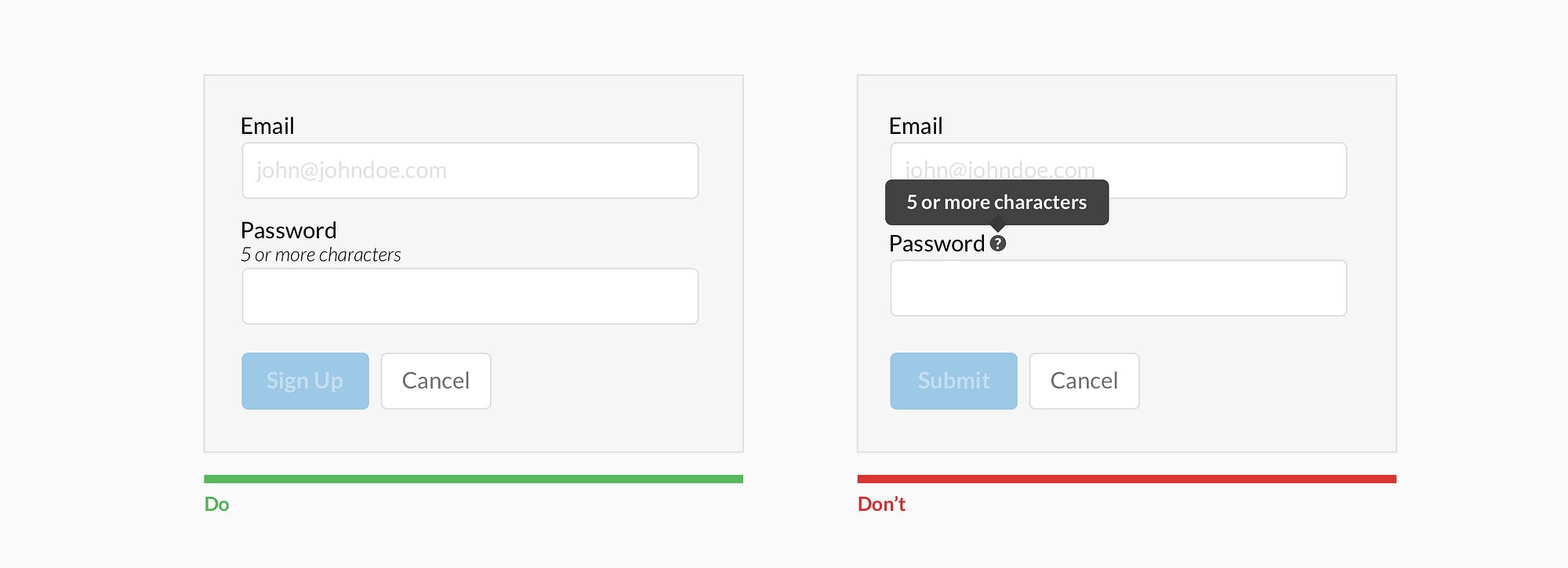
Don’t hide basic helper text


Expose basic helper text wherever possible. For complex helper text, consider placing it next to the input during its focused state.

Differentiate primary from secondary actions


There is a bigger philosophical debate regarding whether a secondary option should even be included.


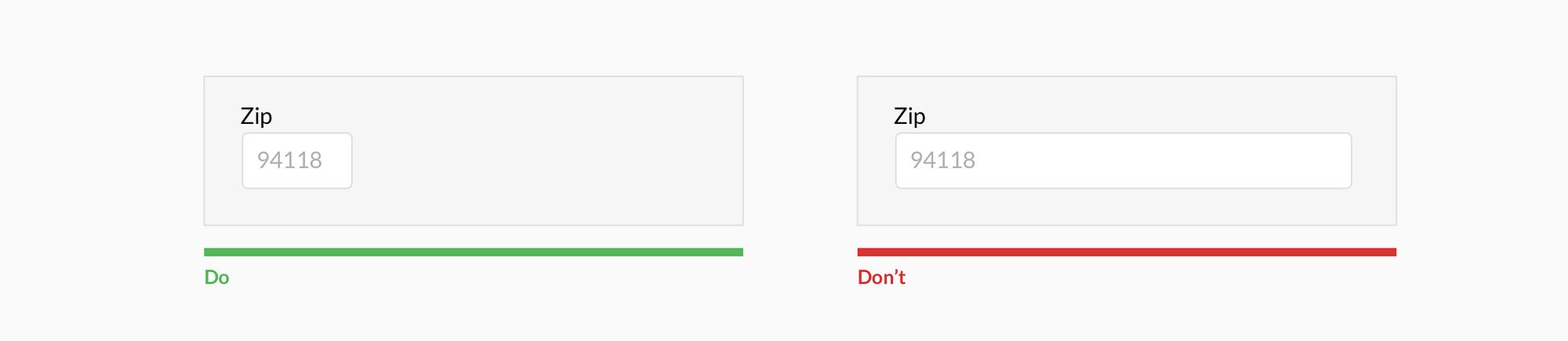
Use field length as an affordance


The length of the field affords the length the answer. Employ this for fields that have a defined character count like phone numbers, zip codes, etc.


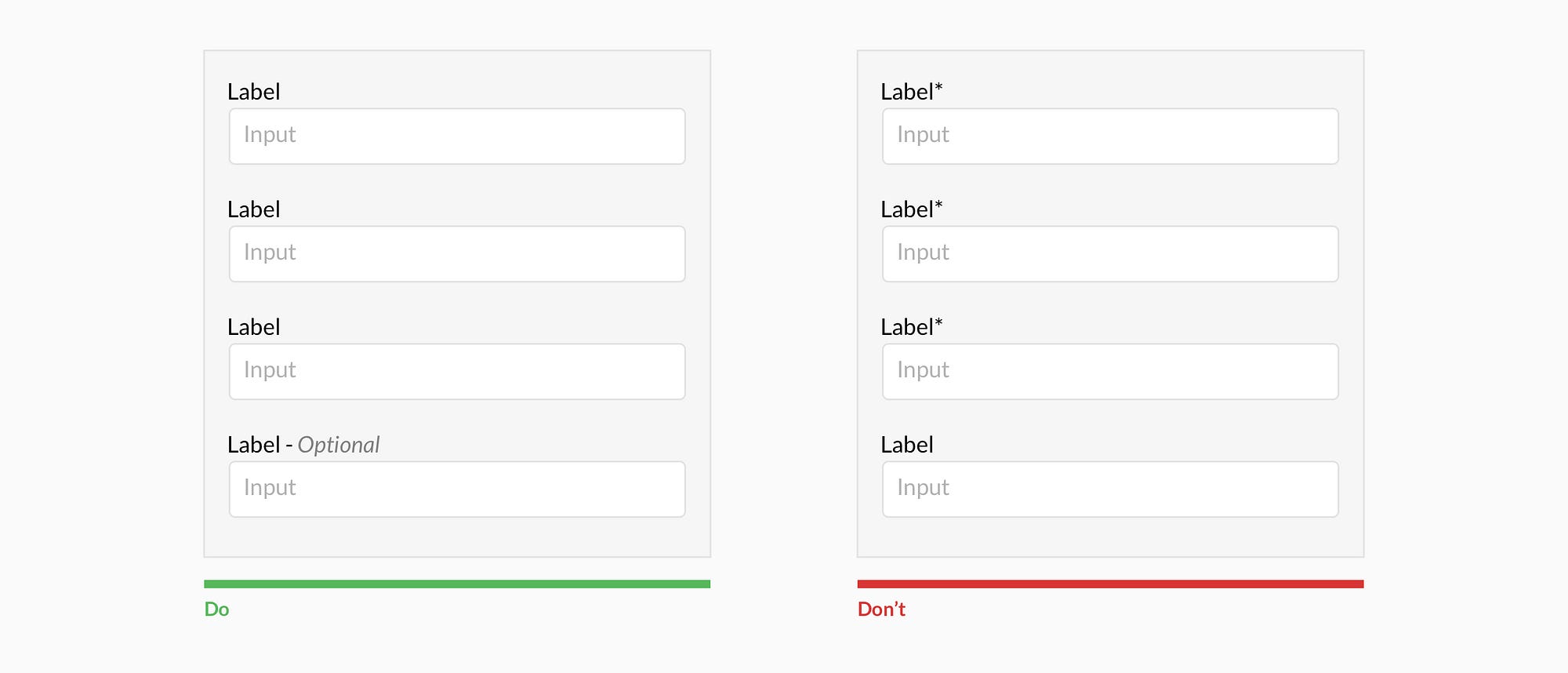
Ditch the * and denote optional fields


Users don’t always know what is implied by the required field marker (*). Instead, it is better to denote optional fields.


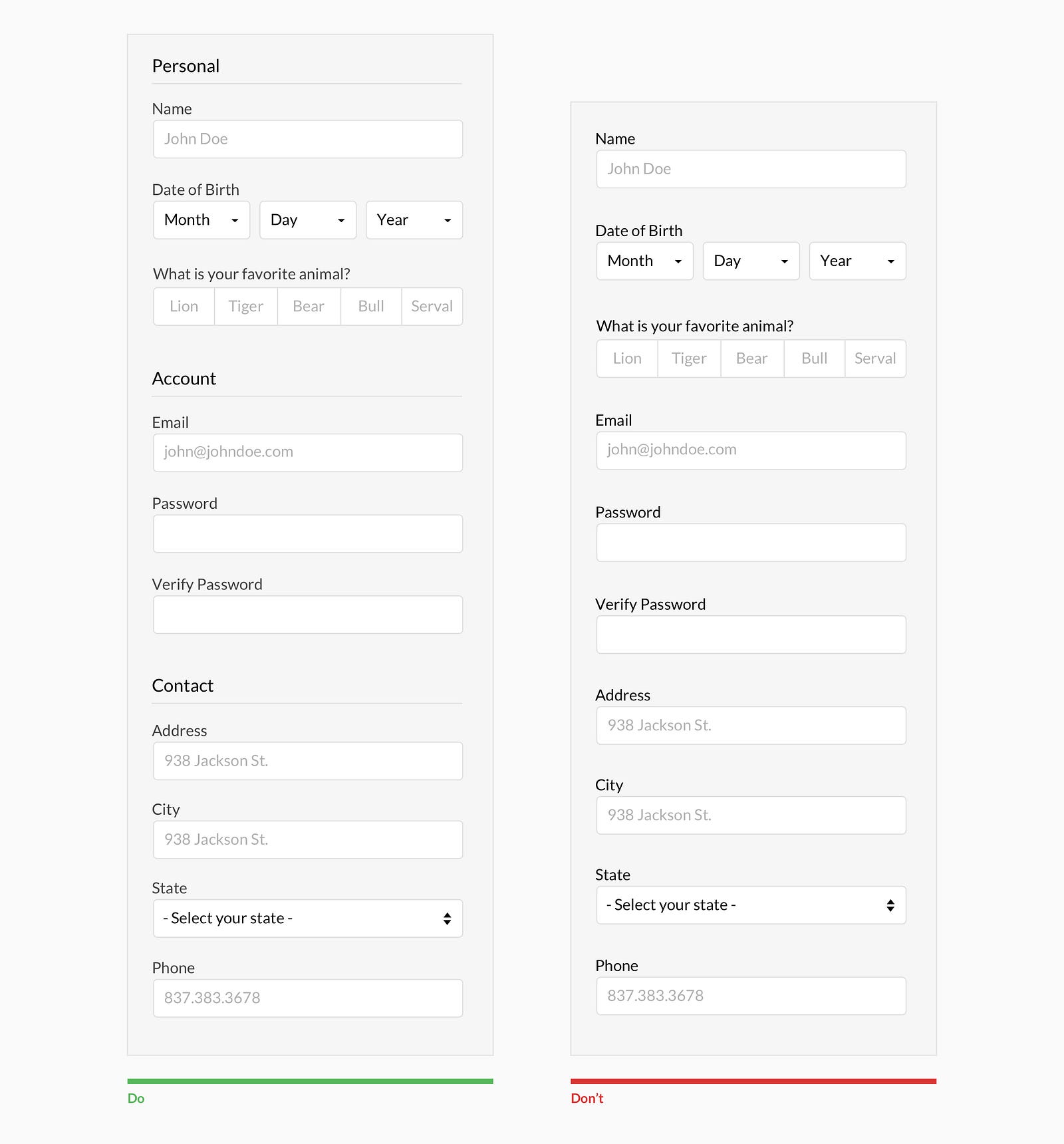
Group related information


Users think in batches, and long forms can feel overwhelming. By creating logical groups the user will make sense of the form much faster.


Why ask?

Omit optional fields and think of other ways to collect data. Always ask yourself if the question can be inferred, postponed, or completely excluded.
Data entry is increasingly automated. For example, mobile and wearable devices collect large amounts of data without the user’s conscious awareness. Think of ways you can leverage social, conversational UI, SMS, email, voice, OCR, location, fingerprint, biometric, etc.

Make it fun

Life is short. No one wants to fill out a form. Be conversational. Be funny. Gradually engage. Do the unexpected. It is the role of the designer to express their company’s brand to elicit an emotional reaction. If done correctly, it will increase completion rates. Just make sure you don’t violate the rules listed above.

Wednesday, May 31, 2017

7 UI Choices That Damage UX

User experience is one of the most important aspects of modern web design. The Google Trends graph for ux design shows how much this field has grown in recent years.
Yet there are still so many websites that push certain design trends which seem like the antithesis of usability. Some are done by accident or negligence, others are done on purpose. The latter are called dark patterns and they’re typically used by marketers to meet some end goal.
But as designers it’s our job to push back and fight for a great user experience. The best way to do that is by shedding light on bad practices and encouraging better ones. So let’s dive into a few of these bad UX practices to see why they exist and how they might be solved.

1. UNWANTED MODALS

The general concept of a modal window is actually very clever. It lets developers add content over the page without using JavaScript to pop open a new tab.
But modal windows are not the problem. Unwanted modals are the problem and they always drag down the user experience.
I’d say there are three different types of “unwanted” modal popups:
  • Exit intents which open when the user’s mouse leaves the page body, usually hovering the browser tab;
  • Timed modals that open after a set amount of seconds;
  • Scroll modals that open after the user scrolls a certain distance down the page.
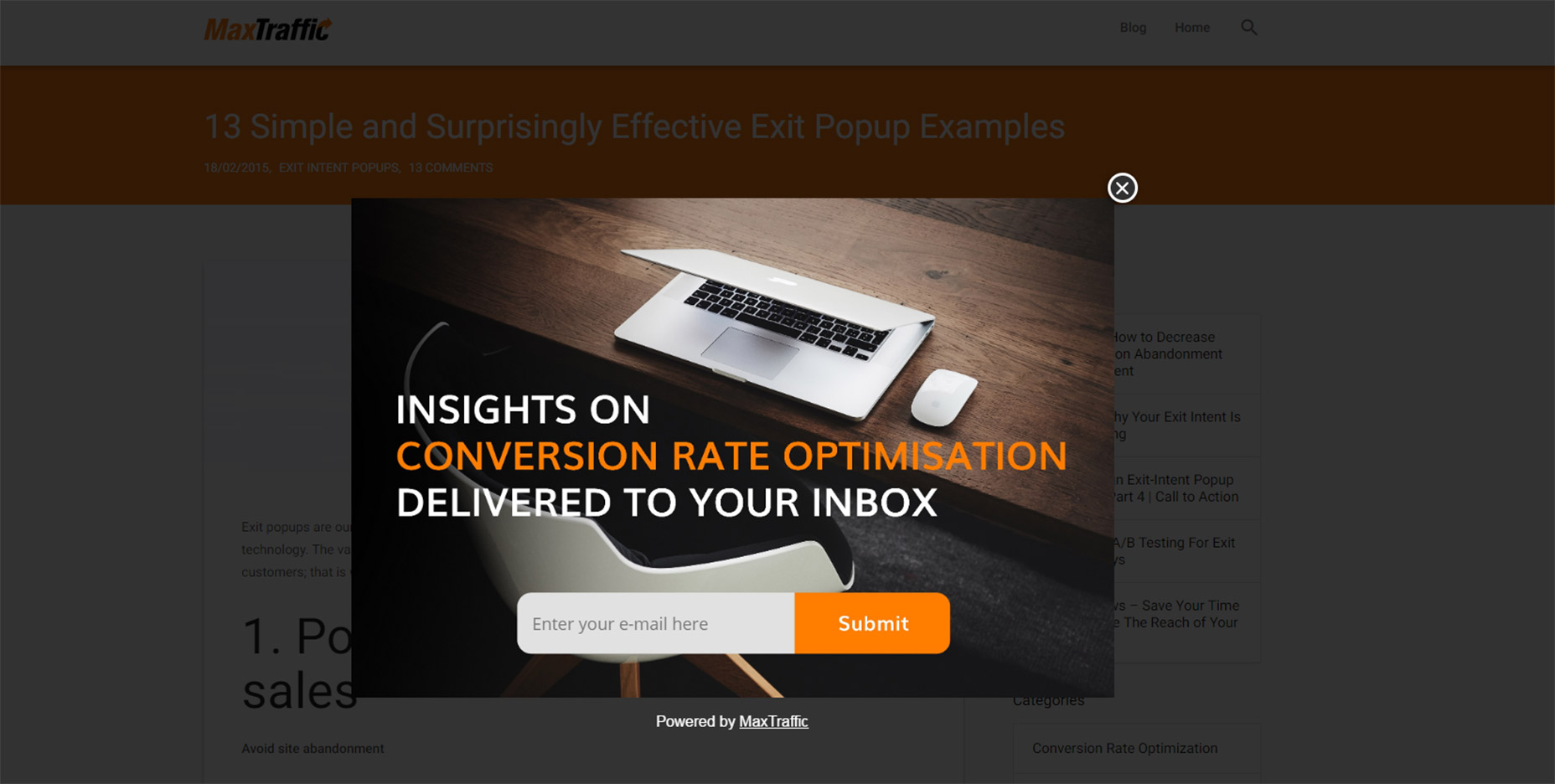
You can see an example of an exit intent modal on this MaxTraffic post using their own exit intent script.
01-modal-window-optins
As much as I’d like to chastise this practice I do understand this from a marketer’s standpoint: it works.
The question isn’t why exit intent/opt-in modals exist. The question is whether you think it’s worth adding an unwanted modal popup to your website.
Is it worth potentially annoying most of your users just for a higher conversion rate?
If you’re more interested in a great user experience then the answer is obvious. Especially with Google now penalizing sites that use annoying interstitials/modals without user interaction.
But these unwanted messages also give modals a bad name, which is tough because they serve a real purpose in UI design. These can be used wisely, like with modal signup fields or information-based modals triggered from a user’s mouse click.
Or they can be annoying marketing messages that just appear seemingly out of nowhere. And don’t get me started on modals that won’t close even when clicking the background.
I really can’t fault marketers for using these modals because they convert well. But they’re also ruining the user experience for everyone else on the web.

2. GUILT IN COPYWRITING

I recognized this trend years ago but I couldn’t put it into words until I read this article by Katie Notopoulos. She uses plenty of great examples to show how guilt-based copy-writing annoys users and increase signups.
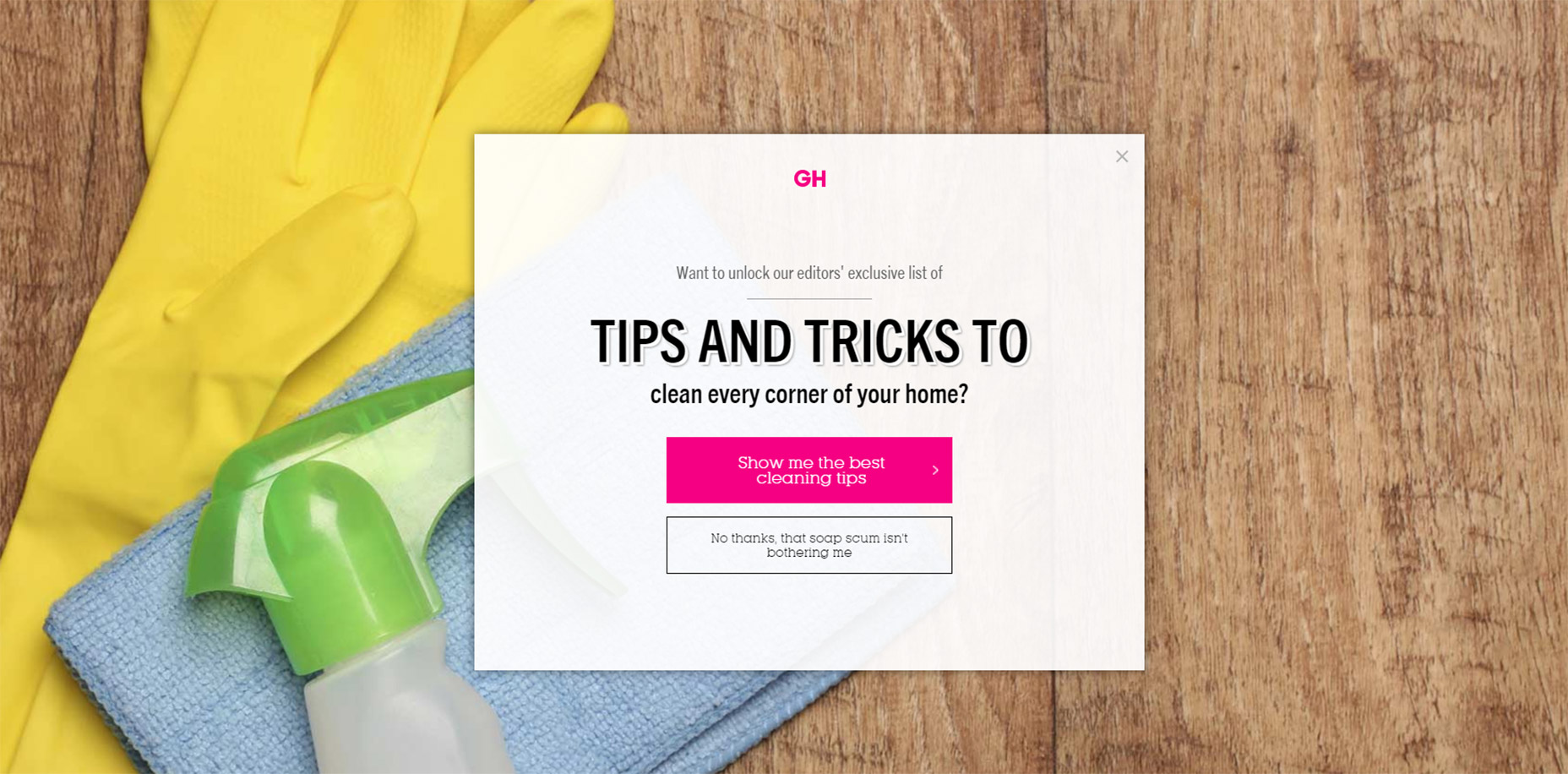
This writing style appears in those annoying modals I just covered. But this writing can also appear in sidebar fields or in-content opt-in forms. One example from Good Housekeeping is just terrible (hover the browser tab to trigger).
02-good-housekeeping-modal-guilt
The goal with this guilt-ridden copy writing is to make the user feel so bad that they second guess their choice to close the window. It usually follows a formula that forces the user to click a nonsensical statement that’s unrelated to closing the window.
For example, a modal might offer you a free eBook on web design. The subscribe button might be simple but the cancel button might read “No thanks, I like sucking at design”. There’s actually a whole Tumblr site devoted to this shaming copy-writing.
This is another example of a technique that works from a marketer’s standpoint, but certainly holds little value from a UX standpoint.

3. FULL SCREEN INTERSTITIALS

It should go without saying that completely taking over the screen with an opt-in or squeeze offer is just plain obnoxious.
This trend is like the unwanted modal window on steroids. These interstitials take over the entire screen and block the page unless you close the window. And sometimes it’s almost impossible to close these windows!
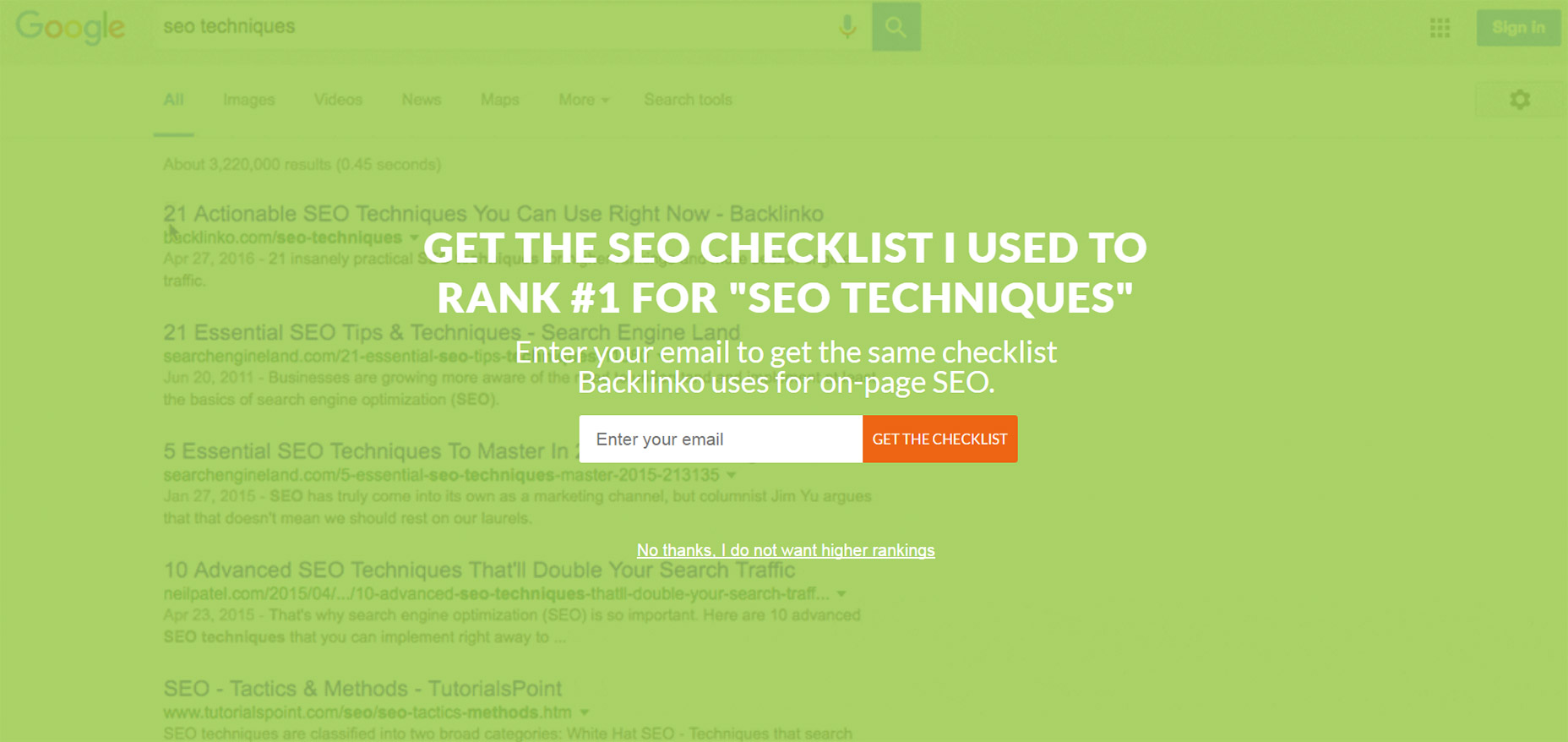
03-backlinko-modal-takeover-window
Backlinko is a fantastic site for SEO tips, but horrible with the pushy marketing.
First time visitors are always greeted with the same fullscreen modal that takes over the entire page. The background uses a video of Google SERPS which is both confusing and ugly.
It places a very tiny X icon in the top right corner and the “no thanks” link is much smaller than the other text, not to mention harder to read. This thing is a usability nightmare on mobile and it’s just one example of a trend that really needs to go.

4. SLIDE-IN ADS/OFFERS

Sometimes you’ll be scrolling down a homepage and see a small box slide into view from the side. This might be a feedback box for user testing, or it might be social sharing links or even a discount/promotion.
I can deal with these every so often. If they stay out of the way and aren’t too obnoxious then, whatever.
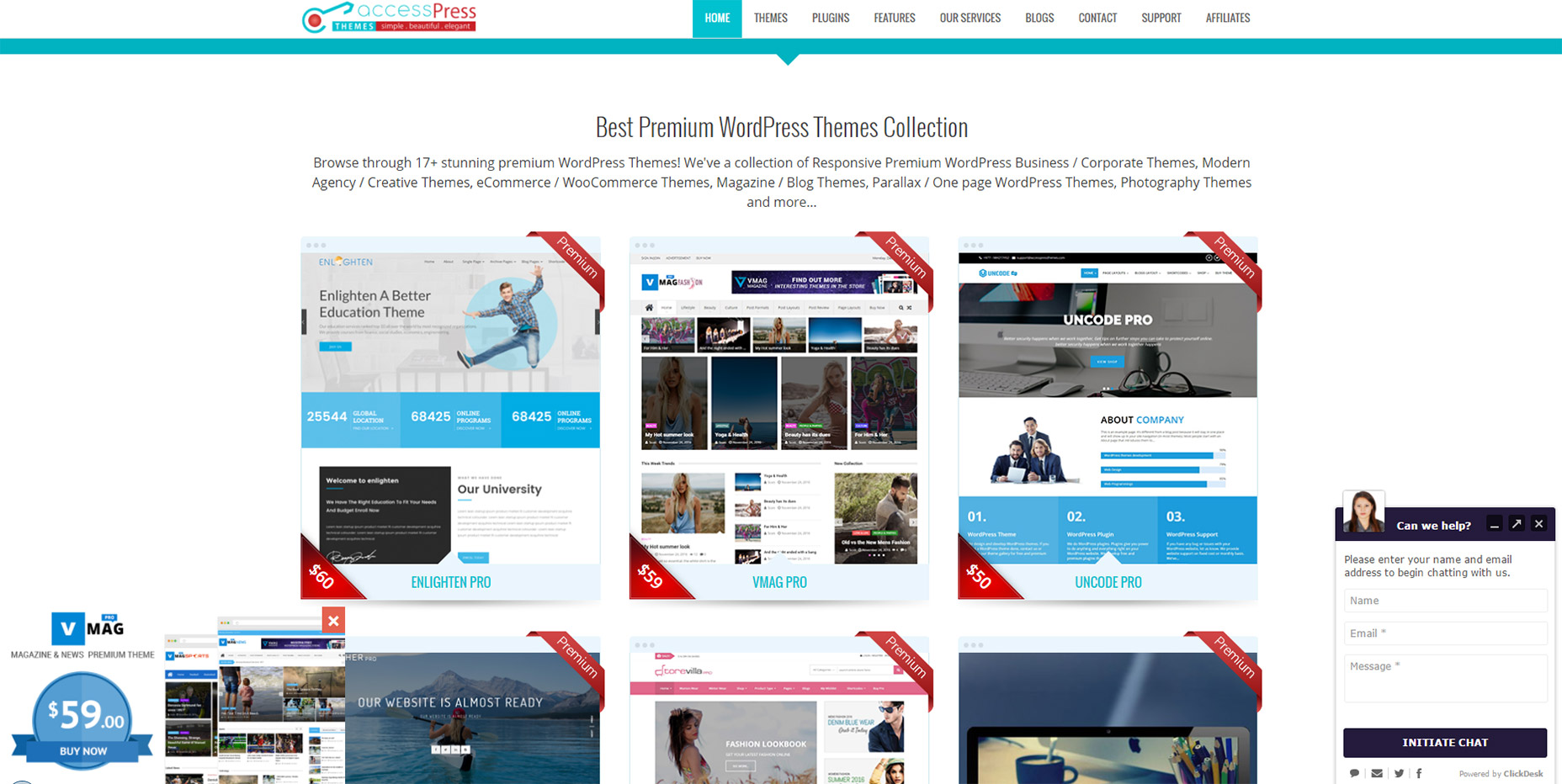
But on sites like AccessPress you can find at least 2 different slide-in boxes on either side of the page, and sometimes even a 3rd!
04-side-sliding-windows
This isn’t meant to shame AccessPress or any other sites in this list. I’m just using this as an example to show how poor UX trends can go too far.
If you have a client who wants this slide-in feature try to make it subtle. No ding noises, no flashing graphics, and preferably no wacky animations. If a user wants to learn more they’ll take the time to read it.

5. CUSTOM SCROLLING

Most trends in this post have been marketing-oriented because, as Gary V says, marketers ruin everything.
But custom scrolling can’t be blamed on anyone. It’s just a trend that’s been around for far too long and feels like a remnant of an older web. Nowadays browsers like Chrome have their own custom scroll features that users can enable/disable on a whim.
But websites like Click and Grow still have these annoying JS-based scroll features that turn navigating the site into a chore.
Usually these custom scroll animations have one of two effects. Either the scroll goes too fast beyond where you wanted to rest the page, or it goes too slow and you have to whip your mouse wheel just to move. Why would any designer think these two options are better than the default?
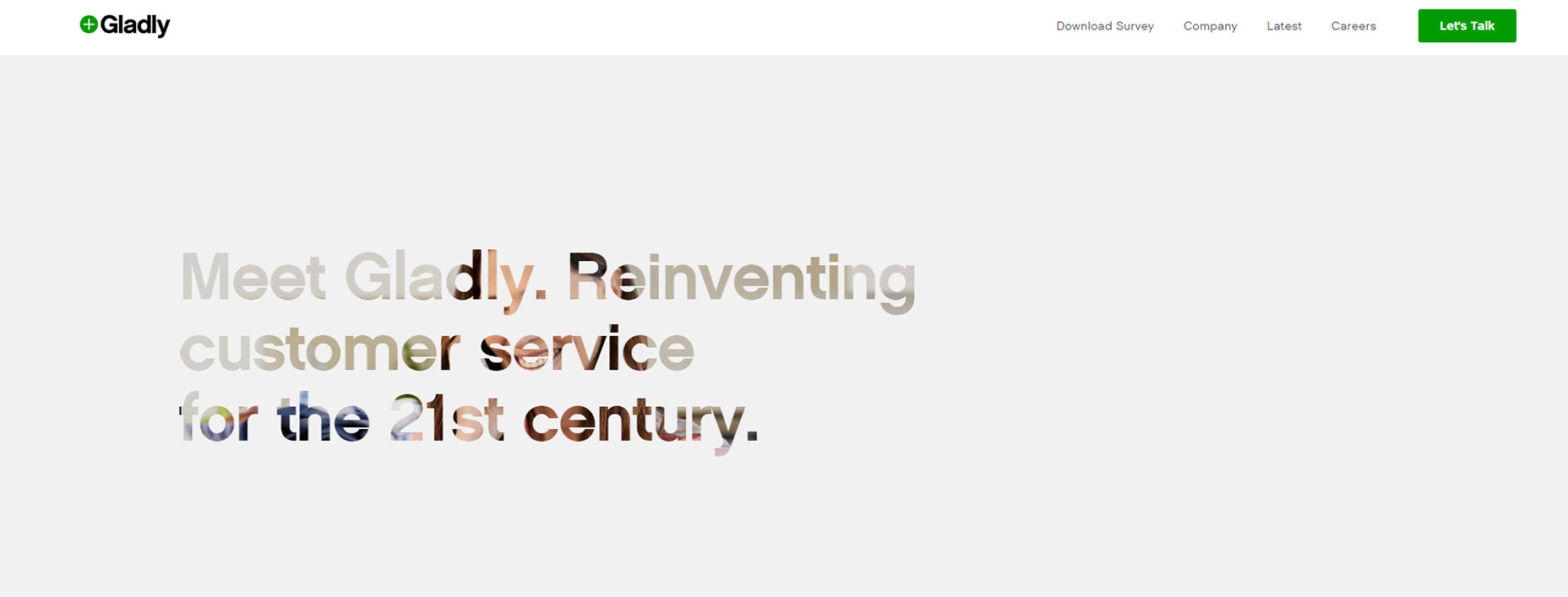
Tied into custom scrolling is a newer trend I’ve seen on single page layouts. They have fullscreen page “sections” where your scroll wheel only moves down one section at a time. Gladly has this trend on their homepage.
05-gladly-homepage
My problem here is the same with fixed scrolling. It takes power away from the user.
The Gladly section animations take way too long to complete. The Internet moves fast and Internet users always want it a little faster. So any type of custom scrolling that ultimately slows down the experience is just bad UX.

6. NAV MENUS WITHOUT PADDING

This is a tough trend to explain but you know it when you see it.
Every site has a navigation menu and most links have padding around them. But sometimes the padding isn’t clickable, so to navigate you need to click on the exact block area of the text itself. This drives me crazy!
It takes maybe 30 seconds to move CSS padding from a link’s container element to the link itself. The navigation menu looks the same, but now users can click the link and the space around the link. So much easier!
Take a look at Tilde’s navigation for a live example.
The craziest thing about their site is that their mobile responsive navigation actually does have clickable padding. Only their desktop nav is plagued by the text-only click area.
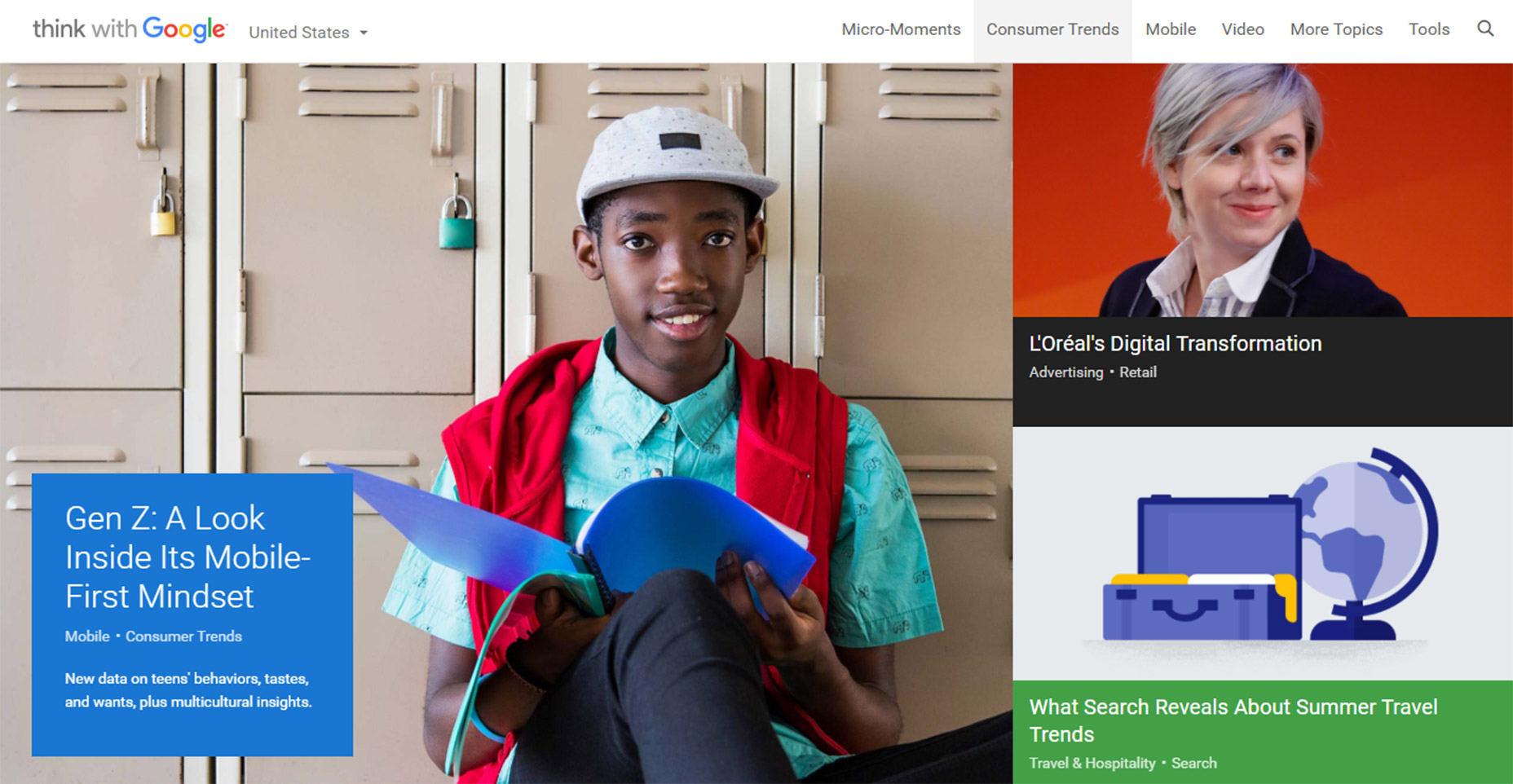
On the flip side you’ll find many sites that understand the importance of this very subtle yet crucial detail. One example is Think With Google where you can actually see the full link size while hovering:
06-think-with-google-nav
Just keep this in mind going forward because it’s a very simple alteration that can have a huge impact on usability.

7. PAGINATED LISTICLES

Last but not least I’m poking a bit of fun at blogs that design their content into one-item-per-page listicles.
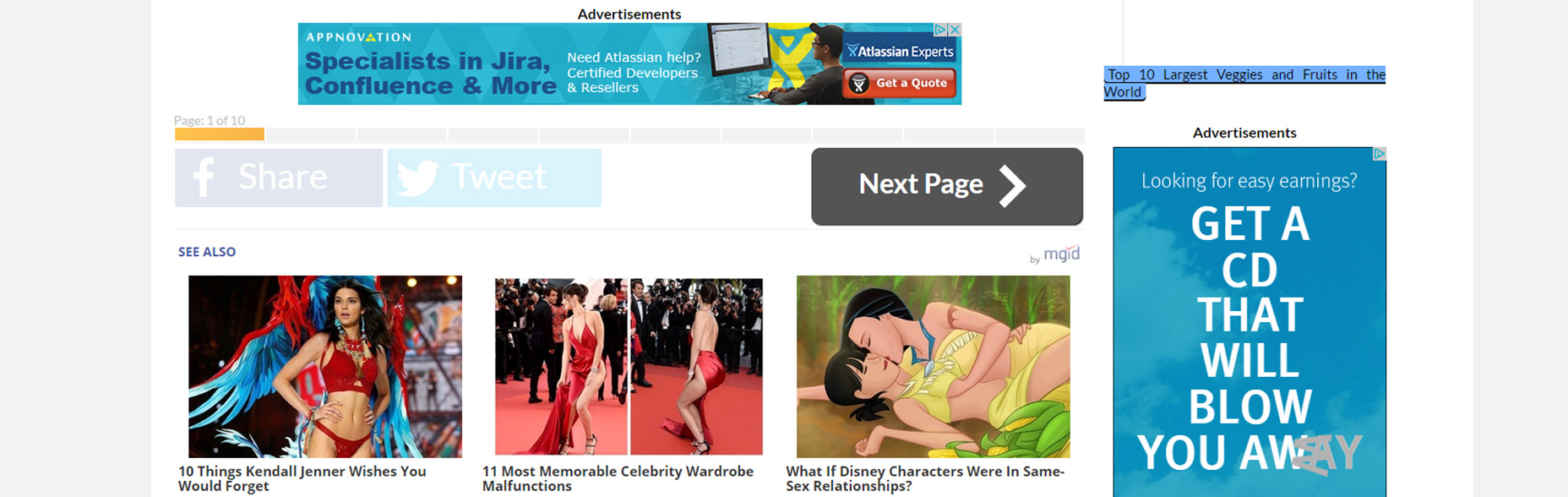
I cannot imagine that any person enjoys constantly clicking the “next” button to read through a clickbait post. You’ll find tons of these on many different websites and none of them consider the user’s experience.
08-next-page-browsing-listicles
This trend is mostly about page views and ad revenue more than anything else. And while it’s not really in the designer’s control to fix this, it does relate to the user experience and webmasters/designers should do all they can to avoid these multi-paged articles.
I can only imagine how many other trends are out there annoying users on a daily basis. But I hope by sharing these ideas more designers will work towards eliminating these dark trends and reducing their presence on the web.
Thursday, October 13, 2016

Essential Skills To Become A Great UI/UX Designer

It’s frustrating to find job offers looking for a UI/UX designer. While these two skillsets are closely related, their skills don’t always overlap. A quality UI designer may not understand user experience psychology. Just like a top-tier UX designer might not be a master of Photoshop or Sketch.
But there is a good amount of overlap, and to be a great UI/UX designer you’ll need to dip a toe into both worlds.
In this guide I want to comb over the fundamental skills that you should learn to promote yourself as a quality UI and/or UX designer. Job security is much easier when you can alternate between both roles. And it’ll be easier for you to see the big picture in any creative project.
If you want a quick overview of specific features I highly recommend browsing this UX checklist.

User Advocation

Remember that a UI/UX designer speaks for the user. But you are not the user. This is an important distinction because most people using your product will not have the same expertise.
This is why usability testing can be so important. Ask users directly what they like and don’t like. Gather feedback. Try to find the root cause of their issues and make only the necessary changes.
Every great UX designer will be a true advocate for the user. The user experience goes beyond a glossy interface to encompass how the UI feels, behaves, and responds to user interaction. Pay careful attention to the details and be willing to scrap ideas even if you think they’re great.
In a situation where you like something that most users don’t it’s generally wise to drop the idea and rework it a little.
User Advocation
Listen to the user’s complaints and try to understand what they’re really saying. This is true of both UX and UI designers, although most user testing involves the UX side of things.
A pretty interface means jack if it can’t operate properly.
Advocate for the user through your words and actions. This is ultimately the #1 requirement of a UX designer. It’s a tough skill to nail down because it’s not exactly a specific skill. But I’d say having an open mind and being willing to rethink ideas will help you understand the user’s perspective much easier.
Here are some related links to read more on this.

Visual Communication

Perhaps the most valuable skill of any designer is visual communication. Most designers get ideas in their head and need to explain these ideas to project managers, developers, or other designers.
Being able to sketch is a great skill to have for this very reason. But you can also communicate ideas digitally by creating digital wireframes, mockups, or interactive prototypes.
Visual Communication
The tool or medium you use to create visual assets really doesn’t matter. Naturally it’s great to have many tools in your toolbox. But if you don’t know Photoshop and only use wireframing tools this can work fine.
It’s very important to communicate your ideas visually to the design team & the development team. It’s possible to do this with words but you’ll have a much easier time showing rather than telling.
Be able to communicate with business and marketing guys too. This means using layman’s terms to explain more complicated features.
Explain what the UX plan is to everyone using whatever visuals or words necessary. One part of this is to master a visual medium(whether sketching or software). The other part of this is communication.
Just because an idea makes sense to you doesn’t mean it’s being explained properly to make sense to others.
Ask your team and clients if they need clarification on anything. Don’t let anyone sit there nodding too afraid to speak up and ask questions. Soft skills are vital to UX work.
Learn to love communication and your job will be that much easier!

Digital Design Software

Not all UX designers know how to use Photoshop, Sketch, or Illustrator. But every UI designer should know at least one of these programs.
The differences between these two jobs are small but noticeable. UI designers must create visuals whether icons, logos, or interface mockups. UX designers are more concerned with how these interfaces behave and how users complete their objectives.
But if you’re going the UX design route it’s still wise to study Photoshop or Sketch(or both).
Just mastering one of these programs will help you express your visual ideas much clearer. You’ll also be much more lucrative to employers.
And with so many online tools it’s important to branch out when needed.
Desktop software like the Adobe suite is crucial to the design process. But UI/UX platforms like InVision and UXPin can both prove vital to your portfolio of skills. These are tools for rapid prototyping and creating interactive demos from scratch.
Digital Design Software
You can accomplish this same task with a frontend library like Bootstrap, but not all UX designers want to learn coding.
Truthfully it doesn’t matter how you create prototypes. But if you have a broad range of skills using various design programs your resume will be much more lucrative.
One last tool I’d recommend learning is a digital UX animation program. The two most popular choices are Principle and Adobe After Effects. These programs let you import digital mockups and manipulate the layers to create custom animations.
Adobe AE
Check out this TutsPlus tutorial if you want to learn more. It’s not easy picking up all these programs but you’ll be thanking yourself later.
A great UI/UX designer should be thinking about every step of the design process. It starts with wireframing and prototyping, then moves through digital graphic/UI design into full interactivity.
These animation programs allow you to simulate interactivity without actually building a demo interface with code. Project leaders like to see these kinds of assets and your skills will prove invaluable to the process.

Empathy & Critical Thinking

Being empathetic seems very abstract but it’s quite powerful. If you can empathize with users you’ll be able to understand their concerns, their struggles, and their complaints with an interface.
The best UX designers consider the target audience for any given project. The user experience design for a dating website will be very different than the UX for an RPG video game. Think critically about your target audience to contemplate and understand what they need.
Interpret the individual problems of each project and consider the target audience by understanding how they think & act.
This is a difficult skill to teach because it requires awareness and understanding. When you watch a user interact with a website you should catch all the little details and nuances about their behavior.
If something was difficult for the user they’ll definitely complain during user testing. But a complaint is a problem, not a solution. As a UX designer your job is to gather user feedback and interpret what it means to come up with real solutions.
Practice by surfing the web and browsing other websites. Write down your complaints. Don’t be afraid to ask “why” every step of the way.
Think about why something behaves the way it does and how it could be improved.
With all the advancements in web technology UI designers can do anything. So technically there’s no limit to the question “what can we do?”.
But not every choice will be a good one. Ask yourself “why are we doing this?”. If you can’t come up with a valuable reason then it might not be a great choice. Critical thinking is vital and should be applied to the entire creative process.
Empathy & Critical Thinking
If you’re struggling to understand empathy in design check out this post to learn more. It’s all about practice and application to get a better idea of how interfaces work. Answers aren’t always binary yes or no. They’re usually fluid in the sense of “yes this kind of works, but could be improved by X”.
To delve deeper into the psychological aspects of UX design read through some of these posts.

Moving Forward

Not all of these skills are mandatory to get your first UI/UX job. But if you ever want to become a great UI/UX designer then you’ll really want to branch into all of these areas and develop your skills as much as possible.
UI designers are concerned more with visuals while UX designers care more about the experience. However both jobs overlap quite a bit. If you can technically fill both roles you’ll be an incredible asset to whatever team you join.